
Todd Robertson
Product Manager - Unified Communications
Unlock the full potential of your hybrid meetings with expert tips on pairing Owl Labs devices for enhanced collaboration.
Why Pairing Owl Labs Devices is Essential for Modern Meetings
In today's hybrid work environment, seamless and immersive meeting experiences are no longer a luxury but a necessity. Owl Labs devices are designed to deliver just that, with features like Owl pairing that expand audio and video reach across your meeting spaces. This capability ensures all participants are seen and heard clearly, making your meetings more inclusive and productive. By pairing multiple Owl devices, you can unlock larger and more flexible meeting spaces, catering to the unique needs of modern, hybrid workplaces.
Which Owl Devices Can Be Paired
Currently, Owl Labs offers specific pairing options to maximise your meeting setup:
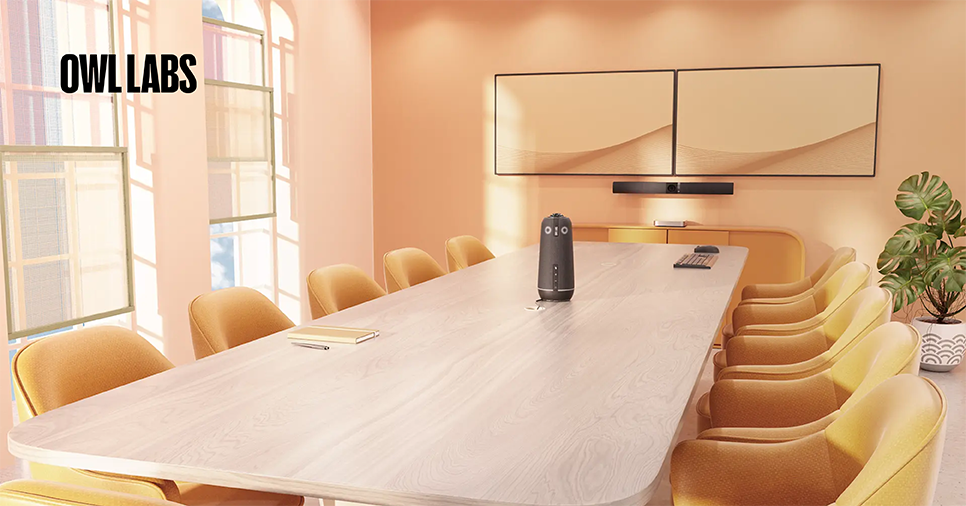
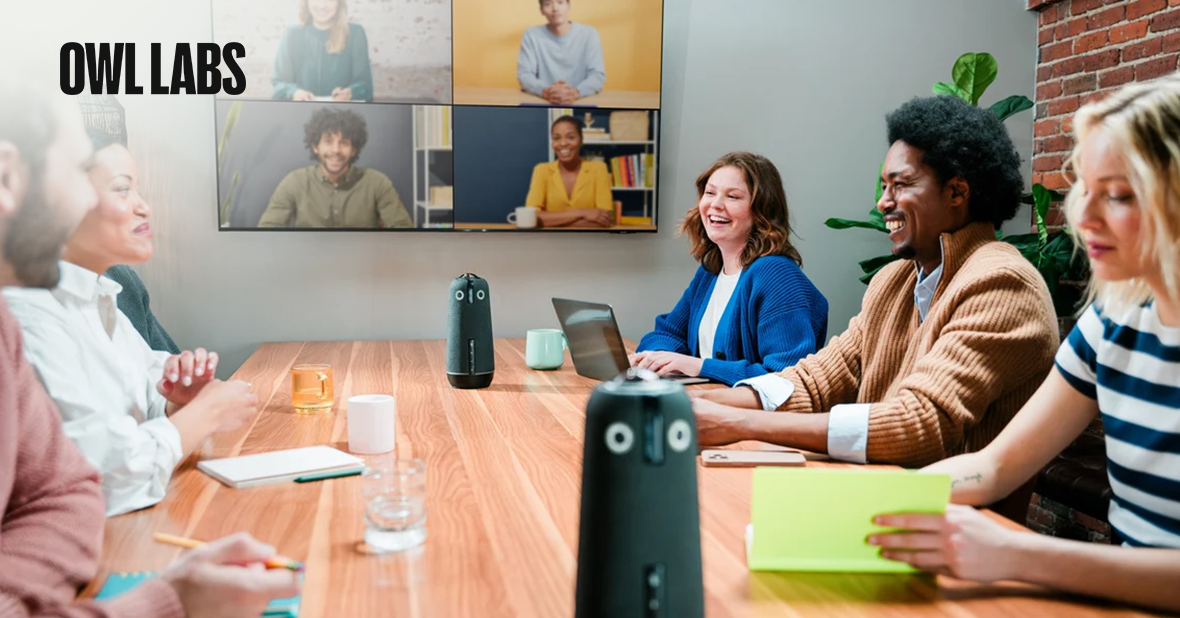
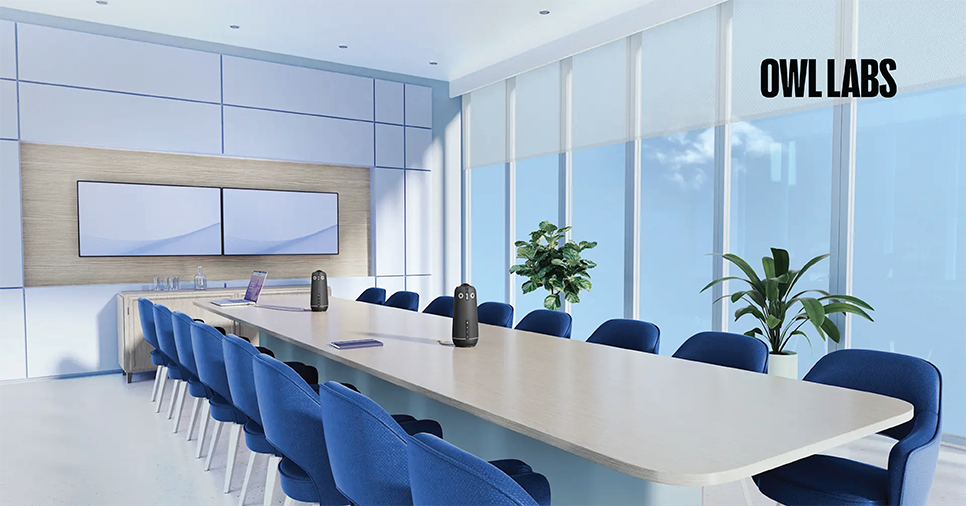
- Two Meeting Owls (4+, 3, or Pro): This combination extends the range and capabilities of your meeting setup by combining the audio and video ranges of both devices.
- One Meeting Owl (4+, 3, or Pro) and one Owl Bar: This pairing option adds a new vantage point, enhancing both the visual and audio experience of your meetings.
By understanding these combinations, you can tailor your meeting room setup to ensure optimal coverage and engagement, no matter the room size or shape.

Step-by-Step Guide to Pairing Your Owl Devices
Pairing your Owl devices is a straightforward process managed through the Meeting Owl app. Follow these steps to ensure a smooth setup:
- Update Software: Ensure both Owl devices are updated to the latest software version via the Meeting Owl app. This is crucial for compatibility and access to the latest improvements.
- Proximity: Place the two Owls within 4-8 feet (1-2.5 meters) of each other on a level surface. Each Owl needs to see the other’s LEDs to complete the pairing process.
- Power On: Both Owls should be plugged into power and turned on.
- Connect Primary Owl: Connect one of the Owls to your computer via USB, designating it as the “Primary Owl.”
Pairing via the Meeting Owl app:
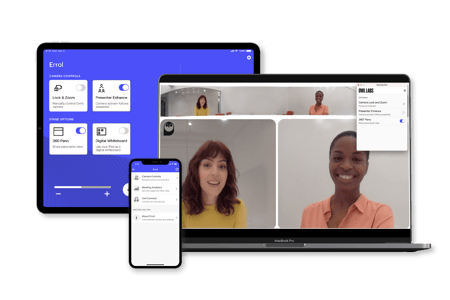
-
The app will search for nearby compatible Owl devices. Select the Owl you wish to pair as the secondary device.
- Follow the in-app prompts to confirm the pairing. The Owls' LEDs will blink at one another to visually pair, and the app will confirm once pairing is successful.
Troubleshooting Common Pairing Issues
Even with the best preparation, you might encounter some issues during the pairing process. Here’s how to troubleshoot common problems:
- Pairing Fails: Ensure both Owls are on the latest software version and within the recommended pairing distance of 4-8 feet. If issues persist, reboot both Owls and try the pairing process again.
- Unstable Connection (audio/video drops): Check the distance and ensure a clear line of sight between the Owls. Avoid placing them under bright overhead lights or in spots of strong sunlight.
- Secondary Owl Not Detected: Ensure the Secondary Owl is powered on and within range. Verify that it is not already paired with another device.
Best Practices for Optimal Device Pairing
To ensure a stable and high-quality wireless pairing experience, follow these best practices:
- Clear Line of Sight: Ensure the Owls are placed within 4-8 feet of each other at approximately the same height, minimising physical obstructions.
- Minimise Wi-Fi Interference: While Owl pairing uses its own wireless protocol, dense Wi-Fi environments can cause interference. Keep the Owls away from other strong wireless signal sources if you experience issues.
- Sufficient Bandwidth: Ensure your local network has a strong signal and sufficient bandwidth, especially for streaming high-definition video.
- Reboot if Necessary: If you encounter issues, a simple reboot of one or both Owl devices can often resolve them.
Explore our range of Owl Labs products on Alloys and discover how we can support your business with tailored solutions that meet your unique needs. With our fast order turnaround, flexible credit terms, and comprehensive technical support, working with Alloys is straightforward and efficient.
Encourage your partners to take advantage of our expertise and enhance their meeting experiences with Owl Labs devices. Together, we can create a more connected and productive hybrid work environment.